8.8.8.8 DNS: The Ultimate Guide to Google's Public DNS Server (Speed, Security, & Setup)
Introduction
8888 Dns
In the vast landscape of the internet, where information flows at lightning speed, the Domain Name System (DNS) acts as the unsung hero, translating human-readable website names into the numerical IP addresses that computers understand. Choosing the right DNS server can dramatically impact your online experience, influencing everything from website loading speeds to your online security. Among the many DNS options available, Google's Public DNS, with its easy-to-remember address of 8.8.8.8, stands out as a popular and reliable choice.
This comprehensive guide will delve deep into the world of 8.8.8.8 DNS, exploring its benefits, how it works, how to set it up on various devices, and address common concerns. Whether you're a tech novice or an experienced user, this article will provide you with the knowledge you need to harness the power of Google's Public DNS. We'll explore all aspects of 8.8.8.8 DNS, and you'll be able to decide if it's a good fit for your needs.
What is DNS and Why Does it Matter?
Before diving into the specifics of 8.8.8.8, it's crucial to understand the fundamental role of DNS. Imagine the internet as a giant phone book. Instead of looking up phone numbers, DNS translates domain names (like google.com) into IP addresses (like 142.250.185.142).
When you type a website address into your browser, your computer sends a request to a DNS server. The DNS server then looks up the corresponding IP address and returns it to your computer. Your computer then uses that IP address to connect to the website's server. Without DNS, we'd have to memorize long strings of numbers to access our favorite websites. This would be a huge inconvenience.
The speed and reliability of your DNS server directly impact your browsing experience. A slow or unreliable DNS server can lead to slow website loading times and frustrating connection errors. Choosing a fast and reliable DNS server, such as Google's 8.8.8.8, can significantly improve your online experience.
What is 8.8.8.8 DNS? An Overview of Google's Public DNS
Google Public DNS is a free Domain Name System (DNS) service offered to internet users worldwide. Launched in 2009, it aims to provide a faster, more secure, and more reliable DNS resolution service compared to the default DNS servers provided by most Internet Service Providers (ISPs). The primary DNS server address is 8.8.8.8, and the secondary (or alternate) DNS server address is 8.8.4.4. These addresses are easy to remember and have become synonymous with reliable DNS service.
Google maintains a vast network of DNS servers strategically located around the globe. This global infrastructure ensures that DNS queries are resolved quickly and efficiently, regardless of your location. By leveraging Google's robust infrastructure and advanced caching techniques, 8.8.8.8 DNS often outperforms the default DNS servers provided by ISPs.
Key Benefits of Using 8.8.8.8 DNS
Switching to Google Public DNS offers several advantages:
- Improved Speed: Google's extensive server network and advanced caching algorithms can significantly reduce DNS lookup times, resulting in faster website loading speeds. This is perhaps the most noticeable benefit for many users.
- Enhanced Reliability: Google's DNS infrastructure is highly redundant, meaning that even if one server fails, others are readily available to take over. This ensures that you can always access your favorite websites.
- Increased Security: Google Public DNS implements various security measures to protect against DNS spoofing and other attacks. While it doesn't replace a full security suite, it adds an extra layer of protection.
- Bypassing ISP Restrictions: In some cases, ISPs may block or throttle access to certain websites. Using Google Public DNS can help bypass these restrictions and access the content you want.
- Free and Easy to Use: Google Public DNS is completely free to use, and setting it up is a straightforward process on most devices.

How 8.8.8.8 DNS Works: A Technical Deep Dive
When you use 8.8.8.8 as your DNS server, your computer sends DNS queries directly to Google's servers. These servers then use a process called recursive DNS resolution to find the IP address associated with the domain name you requested.
- Recursive Resolution: Google's DNS servers act as recursive resolvers, meaning they can query other DNS servers on your behalf to find the answer to your query. This process may involve querying root servers, top-level domain (TLD) servers, and authoritative name servers.
- Caching: To speed up the resolution process, Google's DNS servers cache the results of previous queries. This means that if someone else has recently requested the same domain name, the answer can be retrieved from the cache instead of querying other DNS servers. Caching significantly reduces the time it takes to resolve domain names.
- Security Measures: Google Public DNS implements several security measures to protect against DNS attacks, including DNSSEC (Domain Name System Security Extensions) validation. DNSSEC adds a layer of authentication to DNS records, making it more difficult for attackers to spoof DNS responses.
Setting up 8.8.8.8 DNS: Step-by-Step Guides for Different Devices
Configuring your devices to use Google Public DNS is a relatively simple process. Here are step-by-step guides for some common devices:
1. Windows:
- Open the Control Panel.
- Go to "Network and Internet" and then "Network and Sharing Center."
- Click on "Change adapter settings."
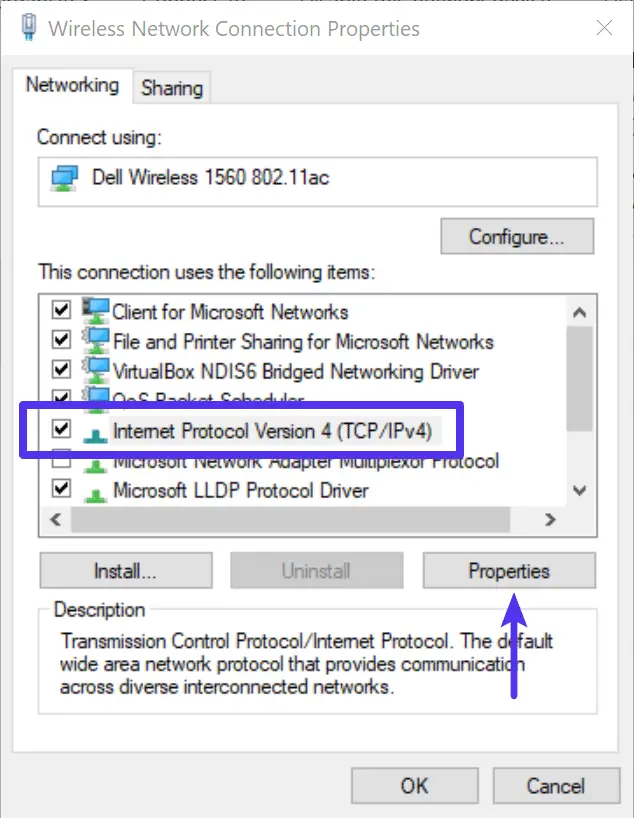
- Right-click on your active network connection (Ethernet or Wi-Fi) and select "Properties."
- Select "Internet Protocol Version 4 (TCP/IPv4)" and click "Properties."
- Select "Use the following DNS server addresses."
- Enter
8.8.8.8as the preferred DNS server and8.8.4.4as the alternate DNS server. - Click "OK" to save your changes.
- Repeat the steps for "Internet Protocol Version 6 (TCP/IPv6)" and enter the following IPv6 addresses:
2001:4860:4860::8888as the preferred DNS server and2001:4860:4860::8844as the alternate DNS server.
2. macOS:
- Open System Preferences.
- Click on "Network."
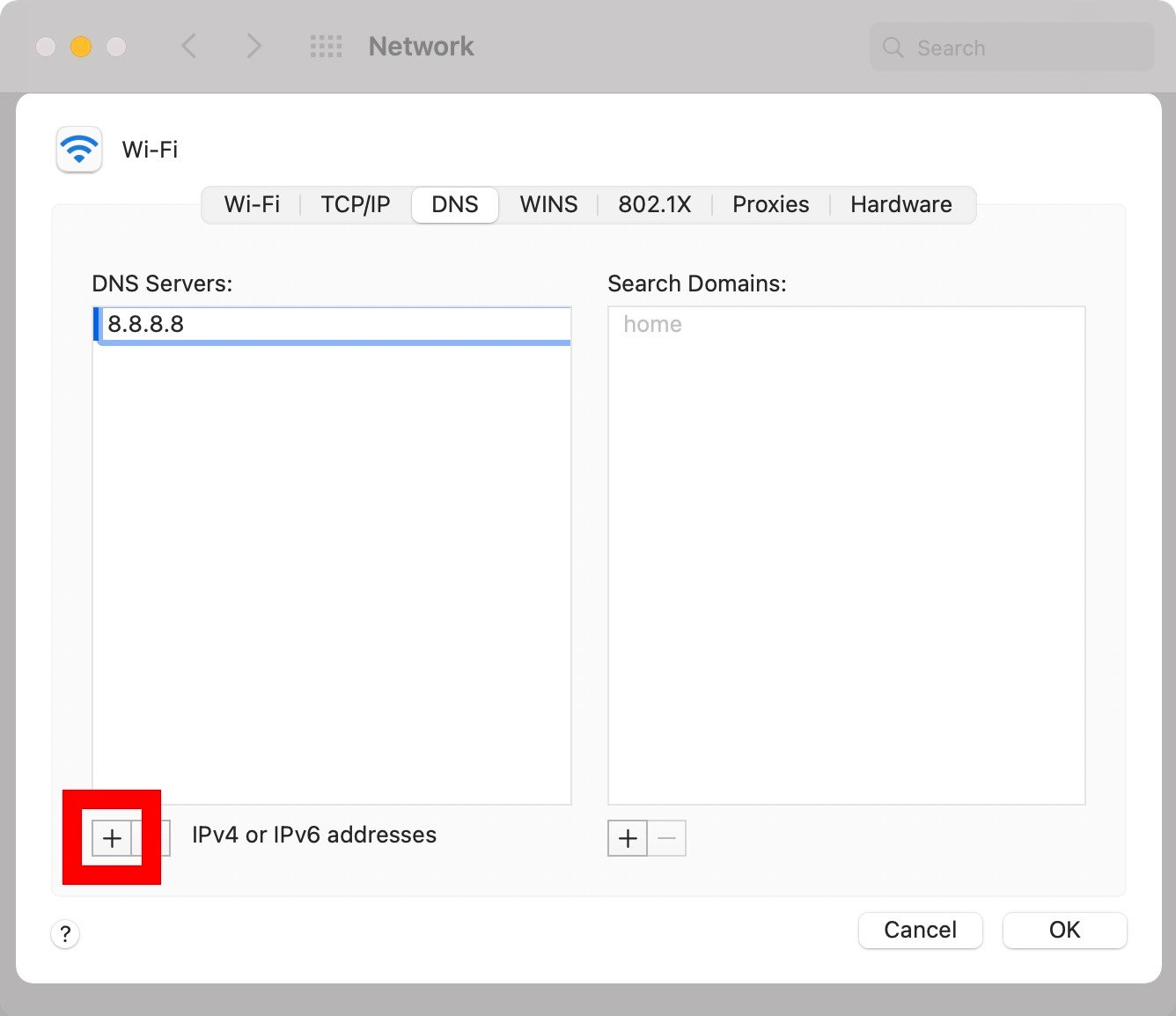
- Select your active network connection (Wi-Fi or Ethernet) and click "Advanced."
- Click on the "DNS" tab.
- Click the "+" button to add a new DNS server.
- Enter
8.8.8.8and8.8.4.4as the DNS servers. - Click "OK" to save your changes.
3. Android:
- Note: The method for changing DNS settings on Android can vary depending on the device manufacturer and Android version. The following is a general guide.
- Go to "Settings" and then "Wi-Fi."
- Long-press on your connected Wi-Fi network and select "Modify network."
- Check the "Show advanced options" box.
- Change the IP settings from "DHCP" to "Static."
- Enter
8.8.8.8in the DNS 1 field and8.8.4.4in the DNS 2 field. - Save your changes.
4. iOS (iPhone/iPad):
- Open the Settings app.
- Tap on "Wi-Fi."
- Tap on the "i" icon next to your connected Wi-Fi network.
- Scroll down to "Configure DNS" and tap on it.
- Change from "Automatic" to "Manual."
- Tap "+ Add Server" and enter
8.8.8.8. - Tap "+ Add Server" again and enter
8.8.4.4. - Tap the "< Wi-Fi" button to save your changes.
5. Router:
- Access your router's configuration page through a web browser. (Consult your router's manual for instructions on how to do this. Common addresses are 192.168.1.1 or 192.168.0.1.)
- Locate the DNS settings. This is often found under "Basic Settings," "Internet Settings," or "WAN Settings."
- Enter
8.8.8.8as the primary DNS server and8.8.4.4as the secondary DNS server. - Save your changes and reboot your router. (Based on my experience, rebooting the router is essential for the changes to take effect.)
Pro tips from us...
- Clear your browser cache: After changing your DNS settings, clear your browser's cache and cookies to ensure that you're using the new DNS server.
- Flush your DNS cache: On Windows, open the Command Prompt and type
ipconfig /flushdnsand press Enter. On macOS, open the Terminal and typesudo dscacheutil -flushcache; sudo killall -HUP mDNSResponderand press Enter. You'll be prompted for your password. - Test your DNS settings: Use online tools like https://www.whatsmydns.net/ to verify that you're using Google Public DNS.
Common Mistakes to Avoid:
- Typing errors: Double-check that you've entered the DNS server addresses correctly. Even a small typo can prevent your device from connecting to the internet.
- Not applying changes: Make sure to save your changes after entering the DNS server addresses.
- Forgetting to reboot: Rebooting your router and devices after changing DNS settings can help ensure that the changes take effect.
- Using outdated guides: The steps for changing DNS settings can vary depending on the operating system and device. Make sure you're using an up-to-date guide.
8.8.8.8 DNS vs. Other DNS Servers: A Comparison
While Google Public DNS is a popular choice, it's not the only option available. Here's a comparison of 8.8.8.8 DNS with some other popular DNS servers:
| DNS Server | Primary DNS | Secondary DNS | Key Features |
|---|---|---|---|
| Google Public DNS | 8.8.8.8 | 8.8.4.4 | Fast, reliable, secure, free |
| Cloudflare DNS | 1.1.1.1 | 1.0.0.1 | Focus on privacy, fast, free |
| OpenDNS | 208.67.222.222 | 208.67.220.220 | Content filtering, phishing protection, parental controls, free and paid options |
| Quad9 | 9.9.9.9 | 149.112.112.112 | Security-focused, blocks malicious domains, free |
| ISP Default DNS | Varies | Varies | Provided by your Internet Service Provider |
Choosing the right DNS server depends on your individual needs and priorities. If you prioritize speed and reliability, Google Public DNS or Cloudflare DNS are excellent choices. If you need content filtering or parental controls, OpenDNS may be a better fit. If you're concerned about security, Quad9 is a good option.
Privacy Considerations with 8.8.8.8 DNS
While Google Public DNS offers many benefits, it's important to consider the privacy implications of using Google's services. Google collects some information about your DNS queries, including your IP address and the domain names you visit. This data is used to improve the performance and security of Google Public DNS.
Google states that it anonymizes and aggregates this data to protect user privacy. However, if you're particularly concerned about privacy, you may want to consider using a privacy-focused DNS server like Cloudflare DNS or Quad9.
Troubleshooting Common Issues with 8.8.8.8 DNS
If you're experiencing problems after switching to Google Public DNS, here are some common troubleshooting steps:
- Verify your DNS settings: Double-check that you've entered the DNS server addresses correctly.
- Clear your browser and DNS cache: As mentioned earlier, clearing your browser and DNS cache can help resolve many DNS-related issues.
- Restart your device and router: Restarting your device and router can often fix temporary network problems.
- Check your internet connection: Make sure that your internet connection is working properly.
- Temporarily disable your firewall or antivirus software: In some cases, firewall or antivirus software can interfere with DNS resolution. Temporarily disabling these programs can help determine if they're causing the problem.
- Revert to your ISP's default DNS servers: If you're still experiencing problems, try reverting to your ISP's default DNS servers to see if that resolves the issue.
Internal Linking:
- Consider linking to a related article on your blog, such as "Understanding DNS Propagation: How Long Does It Take?" (if you have one).
Conclusion
Google's 8.8.8.8 DNS is a powerful and versatile tool that can significantly improve your online experience. By providing faster, more reliable, and more secure DNS resolution, it can help you browse the web more efficiently and safely. Setting it up is easy, and the benefits are well worth the effort.
While it's important to be aware of the privacy considerations associated with using Google's services, the advantages of 8.8.8.8 DNS often outweigh the risks for many users. By following the steps outlined in this guide, you can harness the power of Google Public DNS and enjoy a faster, more reliable, and more secure internet experience. Ultimately, the best DNS server for you depends on your individual needs and priorities. Explore the options, test them out, and choose the one that works best for you. This detailed guide should give you a great start in the world of DNS!